Challenges
Engage. Achieve. Reward.
🏆 What are Challenges?
Challenges are a powerful gamification tool that allow you to assign tasks for players to complete. Upon completing a challenge, players typically receive a reward, which enhances gameplay and fosters a sense of achievement. This keeps your players engaged and connected with your brand, motivating them to return for more.
📋 Types of Challenges
You can create a variety of Challenges for your players, each tailored to the specific tasks they need to complete in order to unlock a reward. The types of Challenges you issue will depend on the goals you want your players to achieve. These Challenges can be:
- Wager & Get
- Win Multiplier
- Total Spins
- Consecutive Login
- Consecutive Deposits
- Deposit & Get
🛠️ How to set up Challenges?
Creating a Challenge follows a similar process to setting up any other Bonus. Start by navigating to the Bonuses section in the sidebar and selecting Challenge as the Bonus Type.
Click the Create Bonus button in the top-right corner, add a name for your Challenge, and click Create. This will take you to the setup page, where you can begin configuring your Challenge.

Creating a Challenge
Creating a Challenge
The first step is selecting the Challenge Type. Regardless of the type you choose, you’ll always configure some key sections: Label, Bonus Details and Challenge Appearance.
🏷️ Label
Assign a Label to this Challenge to categorise and filter it across your Custom Pages. Once tagged, the system will use this Label to control whether this item is displayed in the relevant sections of your Custom Pages.
⚙️ Bonus Details
In this section, you’ll define the details of your Challenge. Below are examples of how to configure the Details for the various available Challenge Types:
Setting up a Wager & Get Challenge

Setting up a Win Multiplier Challenge

Setting up a Total Spins Challenge

Setting up a Deposit & Get Challenge

Setting up a Consecutive Deposits Challenge

Setting up a Consecutive Login Challenge

You can create tiered Challenges by assigning more than one Bonus to your Challenge!
For example, let's say you want to reward your players if they wager 50, 500 and 1000€ euros on a game of your choice:
- Challenge A: 50€ Wager & Get Challenge. Bonuses: Bonus A + Challenge B
- Challenge B: 450€ Wager & Get Challenge. Bonuses: Bonus B + Challenge C
- Challenge C: 500€ Wager & Get Challenge. Bonuses: Bonus C
🤖 Automation Settings
- Auto-Claim Challenge: When enabled, the Challenge is activated immediately upon being credited to the player, with no action required on their part.
- Auto-Claim Released Bonus: When enabled, the Bonus released upon Challenge completion is automatically claimed on the player's behalf, without them needing to collect it from the Rewards modal.
⏱️ Challenge Expiration
When you enable the Set Expiration toggle in Challenge Settings, additional options appear. This section explains what each one does.
- Inherit Expiration: When enabled, the Challenge uses the same expiration settings as the Bonus. This means the Challenge expires at the same time as the Bonus, and you won’t be able to set a separate expiry for the active Challenge.
- Expiry Options: You can choose from three expiry options, depending on your needs.
- No Expiration: Selected by default. The Challenge will never expire automatically from the player’s account (you can still expire it manually).
- Time Period: Set a timeframe for how long the Challenge is available—i.e., how long players have to complete it before it expires automatically.
- Daily Time: Set a daily cut-off time (based on the system clock) when the Challenge will expire automatically. This works well for daily Challenges. If the reward is credited or claimed after the set time, it will expire at the same time on the following day.
🎨 Challenge Appearance
This section is present across all Challenge Types and defines how the Challenge is displayed both before it’s claimed and while it’s active in the Widget and Popup within the player’s Rewards section. While configuring your Challenge's Appearance, you will also be able to preview it in real-time. The fields to configure include:
Active:
- Image
- Title
- Description
- Enable Call to Action (Optional - Enable a button that redirects players to a game, cashier, or game selection page.)
- Terms and Conditions
- Set Challenge Validity: How long players have to complete the Challenge once it's claimed.
- Player Opt-out (Optional): Let players cancel this Challenge before it's finished.

Challenge appearance (active)
Challenge appearance (active)
Before Claim:
- Image
- Title
- Description
- Call to Action - This text also appears in Toast Notifications (if enabled).
- Optional Close CTA
- How to Display Challenge Terms
- Terms and Conditions

Appearance of a Challenge Before Claim
Appearance of a Challenge Before Claim
These settings ensure your Challenge is presented effectively to players on the front end.
From here, all you need to do is make sure you Save your changes and your Challenge should be created and ready to be assigned to your players.
🚪 Letting Players Opt Out of a Challenge
Enable Player Opt-out in the Challenge Appearance (Active) section to let players give up a Challenge they've started but don't want to finish. It's turned off by default.
When a player opts out, they're asked to confirm that their progress and the reward will be lost. Selecting Yes, give up ends the Challenge and removes it from their active list. Selecting Cancel keeps it.
Good to know:
- Completed Challenges can't be cancelled.
- The setting is applied when the Challenge is credited. Turning it on doesn't add the opt-out option to Challenges players already hold, only to ones credited afterwards.
- If the Challenge was completed or became unavailable before the player confirmed, they see: "This challenge is no longer available."
- If something else goes wrong, they see "Could not cancel the challenge, please try again." and can retry.
- A Challenge a player opted out of shows as Expired, with the player recorded as the reason.
♻️ Expire Existing Challenges
Use Expire Existing Challenges to automatically expire a player's other Challenges when this one is credited. This keeps their journey on track, for example when one stage of a campaign replaces the previous one. For Challenges that aren't auto-claimed, this happens when the player claims the Challenge, not when the offer first arrives.
When you enable the toggle, configure:
- Challenges to Expire: All, By Label, By Challenge or By Type.
- Labels to Target (By Label): Expires Challenges carrying the selected Labels. This only reaches unclaimed offers.
- Challenges to Target (By Challenge): Pick the Challenge bonuses to expire. Challenges credited directly by an Activity can't be matched this way.
- Challenge Types to Target (By Type): Expires started Challenges of the selected types.
- Challenge State: Unclaimed Only expires offers the player hasn't started. Unclaimed and Started also ends Challenges in progress.
- Internal Reason: Recorded for your team. Players never see it.
- Player Message (optional): Text shown to the player in the notification.
- Send as Notification: Sends the player a toast notification when something is expired.
Completed Challenges are never expired. We recommend narrow targeting and testing with a Test User who holds each earlier Challenge before going live.
Note: the Multiple Active Challenges rule (see Managing Multiple Challenges) is checked before this expiry. If the player isn't allowed another Challenge of that type, they still can't claim the new one.
Challenge toast notifications can be managed from the Appearance Settings (AKA Branding Studio) in the My Rewards section. If not configured separately, they will default to the same settings as the rest of your Bonuses.
🔭 How to track progress?
Once a Challenge has been credited to a player, a widget will appear in their Rewards and Bonuses tab with a button to start the Challenge.

Challenge preview before claiming
Challenge preview before claiming
A popup will show up after clicking on the button, displaying the description as well as the terms and conditions.

Challenge Popup preview
Challenge Popup preview
Then, a progress bar will be displayed on the Challenge once it has started, and a countdown will appear next to it indicating when the Challenge will expire.
If Player Opt-out is enabled, players can also give up the Challenge from here.

Challenge Progressbar preview
Challenge Progressbar preview
On completion, players will be able to come back to the Challenge widget to claim their Bonus!
For more information on how to review and expire Challenges from your players: Managing Rewarded Bonuses.
✖️ Managing Multiple Challenges
You decide how many Challenges of the same type a player can have active at once. Go to My Rewards → Appearance settings (AKA the Branding Studio) → Experience Settings → Multiple Active Challenges and choose one of three options:
- One at a time: Players can have one active Challenge of each type. This means one per type, not one Challenge in total.
- All Challenge types: Players can have several active Challenges of any type. For example, a player can claim three Wager & Get Challenges at once, and a single bet contributes to all three.
- Selected Challenge types: Choose which types allow several active Challenges. Switch on each type you want to allow (Wager & Get, Win Multiplier, Total Spins, Consecutive Login, Consecutive Deposits, Deposit & Get, Sports Win). Types left off allow one active Challenge at a time. For example, allow several Wager & Get Challenges while limiting Consecutive Login to one.
The rule is applied when a player claims a Challenge bonus. Challenges credited directly through an Activity (for example with the Credit Challenge Action) are not restricted by this setting.
If disabled, when a player tries to claim a Challenge while another of the same type is already active, they will see a message saying: “You already have an active Challenge of this type.” - this message can be edited in the Translation tab of your Appearance settings under Multiple Challenge Disable.
💱 Multiple Currency Support
Track Challenge progress across different currencies using the Currencies setting—no need to create separate challenges for each one.
To access this feature, go to Settings > Currencies in the sidebar. If it's your first visit, an information box will guide you through the process.
Here, you can manually set the FX rate for each currency. These rates also apply to display elements like Wagering Requirements and Minimum/Maximum Bet Amounts in players' chosen currencies—enabling you to create a single Challenge that works for all players.

Accessing and Using Currencies
Accessing and Using Currencies
Please note that you must configure your Currencies before using Rewards. The settings in the Currencies section apply exclusively to currencies used for Challenges within the Rewards system.
🎬 Other ways to Reward your Players
Once Rewards is implemented, a new Action type—Credit Reward—will be available in your list of Activity Actions.
This new Action enables you to credit Challenges that you've configured. These elements can then be used seamlessly across other areas of Fast Track CRM, including within Activities.
Read more about the how to use Actions and Activities.
✍ Translations
If you are targeting multiple markets, you might want to display the Challenge data you've just set up in different languages. Click the + icon and select the Communication Profile you want to add a translation for.
Here's an example of how you could create a translation for the Japanese Communication Profile in a Bonus:
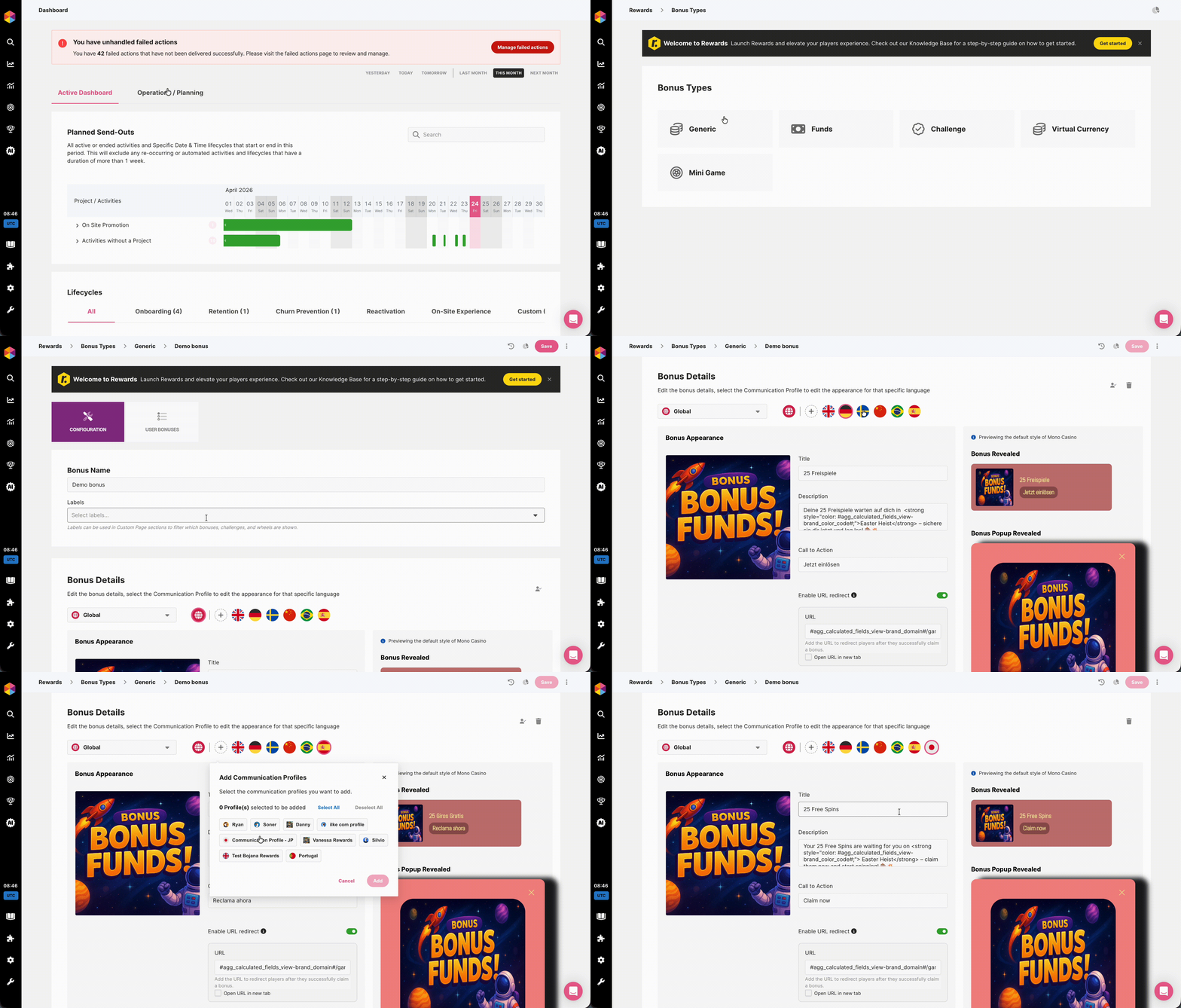
Adding Translations in a Bonus
Adding Translations in a Bonus
The end result here is what the bonus will look like for players matching the criteria of our Japanese Communication Profile.
🌐 Multi-Brand Variations
If you're running a multi-brand setup using Player Origins, you can now create variations of a single Challenge per Origin and Communication Profile. This means you can maintain one Challenge while tailoring its content, bonus code, and settings to each brand independently. No need to duplicate and manage separate entries per brand.
Adding Variations to a Bonus with Multi-Brand
Adding Variations to a Bonus with Multi-Brand
This feature is only applicable if you are using the Player Origins feature in Fast Track with a multi-brand approach.